01
Precise trimming
Select the start and end of an episode on the timeline. The original recording stays unchanged.
Turn a gameplay recording into a clear clip without another app: select the episode, add markers and a note, then save the file or link.
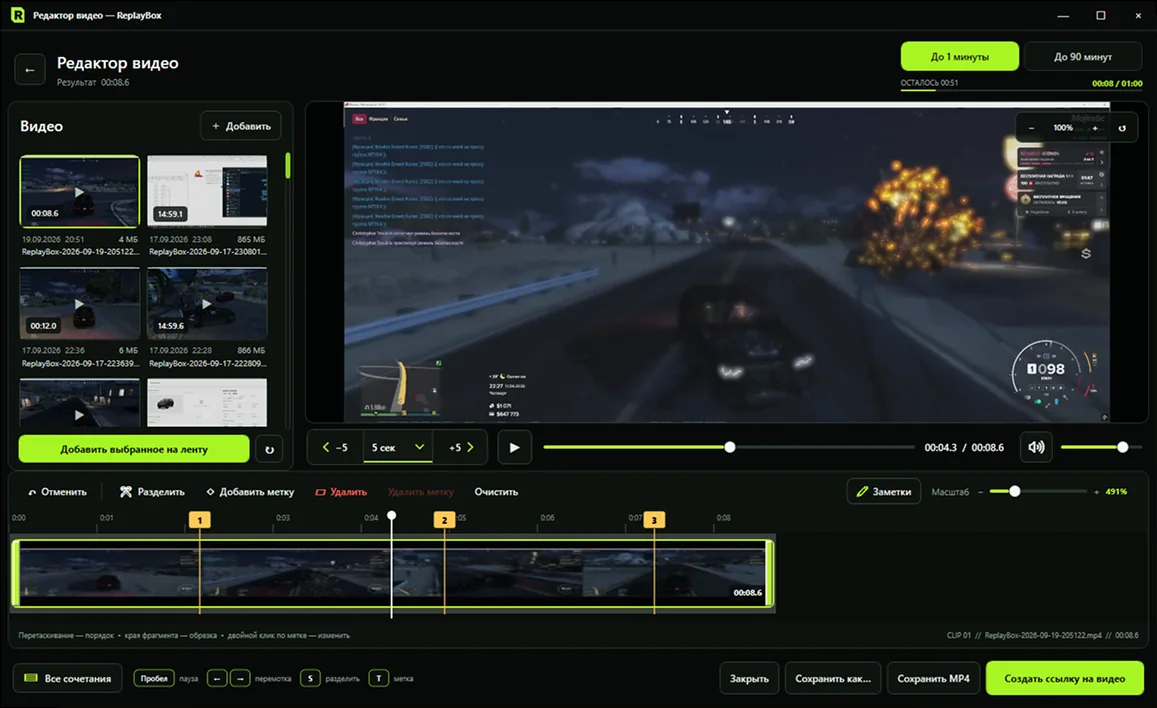
The editor is designed for a quick workflow: open a recording after the game, keep the important clip and share it clearly.
Select the start and end of an episode on the timeline. The original recording stays unchanged.
Check the clip boundaries and frame contents before exporting or publishing.
Create markers at the right position, rename them and delete ones you don't need.
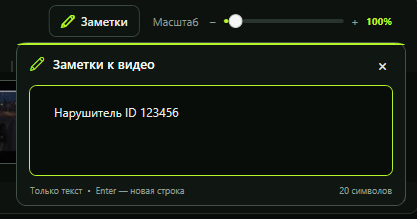
Add an explanation in one notes window without switching between sections.
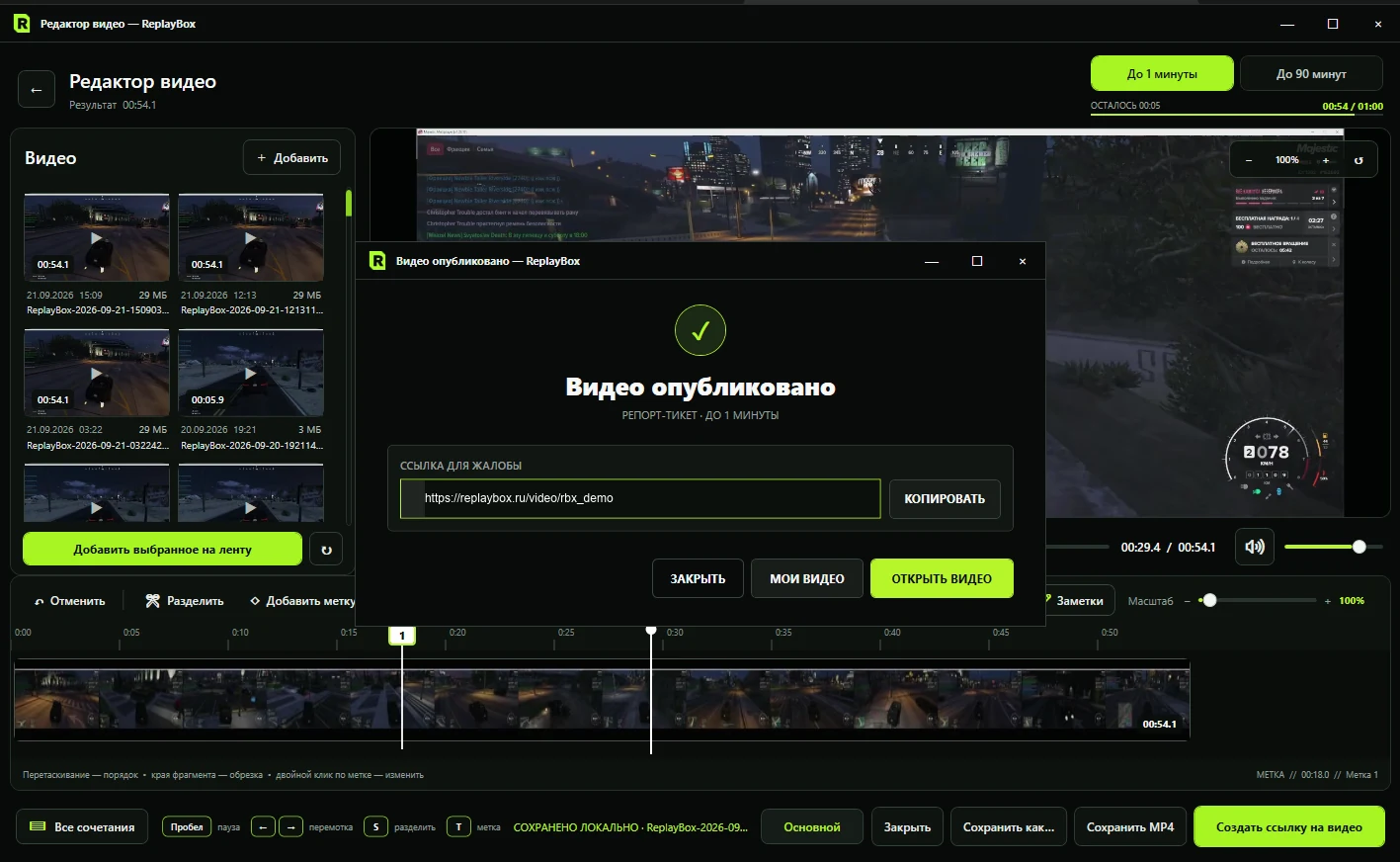
Save the finished MP4 locally or publish it and get a link.
Before editing, choose how much context to retain. The format affects the maximum duration but does not change the source file.
The original recording stays unchanged on your computer.
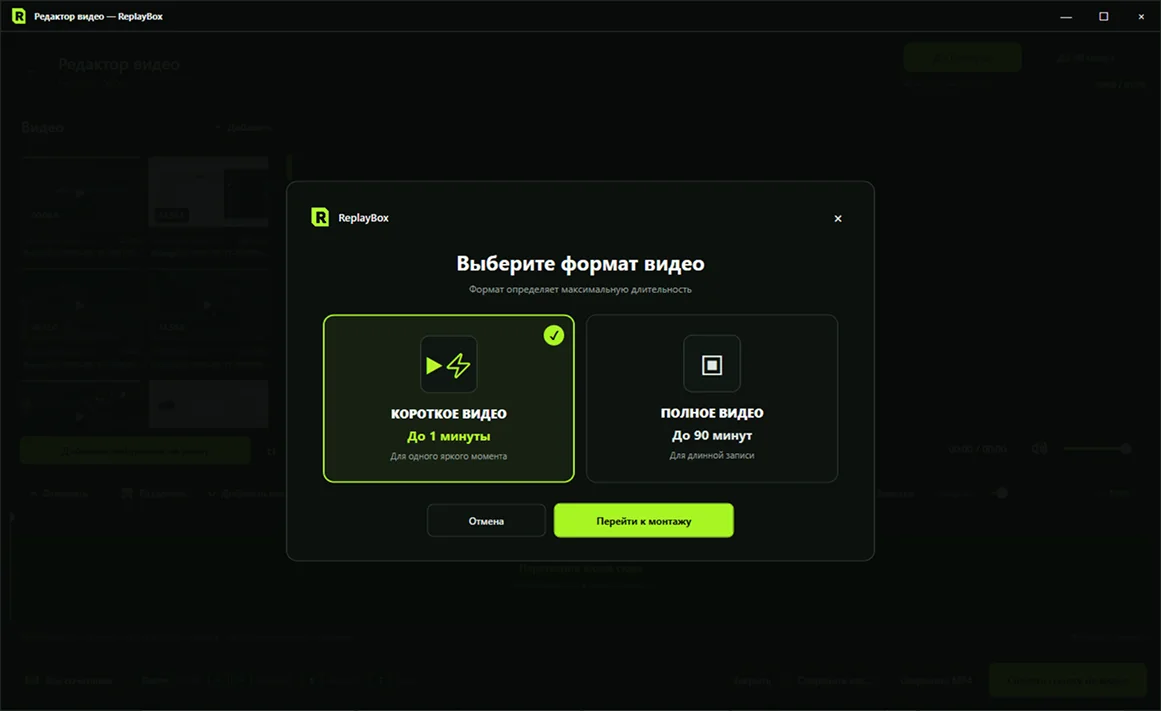
Five steps without moving the file between multiple apps.
Choose a saved gameplay moment from your ReplayBox library.
Keep a short episode or prepare a full recording with context.
Move the clip's start and end and check the result.
Place markers on the timeline and optionally add a video note.
Save the MP4 locally or upload the video and copy its link.
A marker is linked to a specific position on the timeline. Notes share one window and work well for text applying to the entire video.
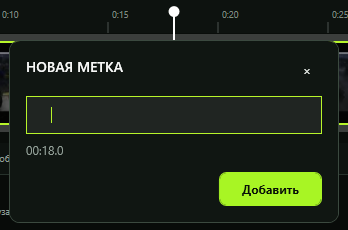
Enter a title; the time position is already shown.
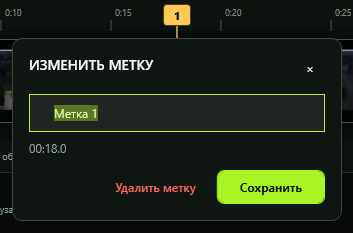
Save a new title or delete a marker you no longer need.
Open the notes window and add text to the video. There is no separate list or second editing mode.
After processing, ReplayBox confirms publication and shows the link. Copy it from the editor or open the video page immediately.
What happens to the source recording, how markers and notes work, and your saving options.
No. Trimming, markers, notes and publishing preparation all happen inside ReplayBox.
No. The original file stays unchanged on your computer, so you can return to it and prepare a different clip.
Yes. Open an existing marker on the timeline, rename it, save it or delete it.
No. The editor uses one Video Notes window with a shared text field.
Yes. You can export the finished video as MP4 and keep it locally. Publishing by link is a separate option.
The short format focuses on one specific moment; a full recording preserves a longer sequence of events. Choose based on the context you need.
Local recording, trimming and MP4 export are free.